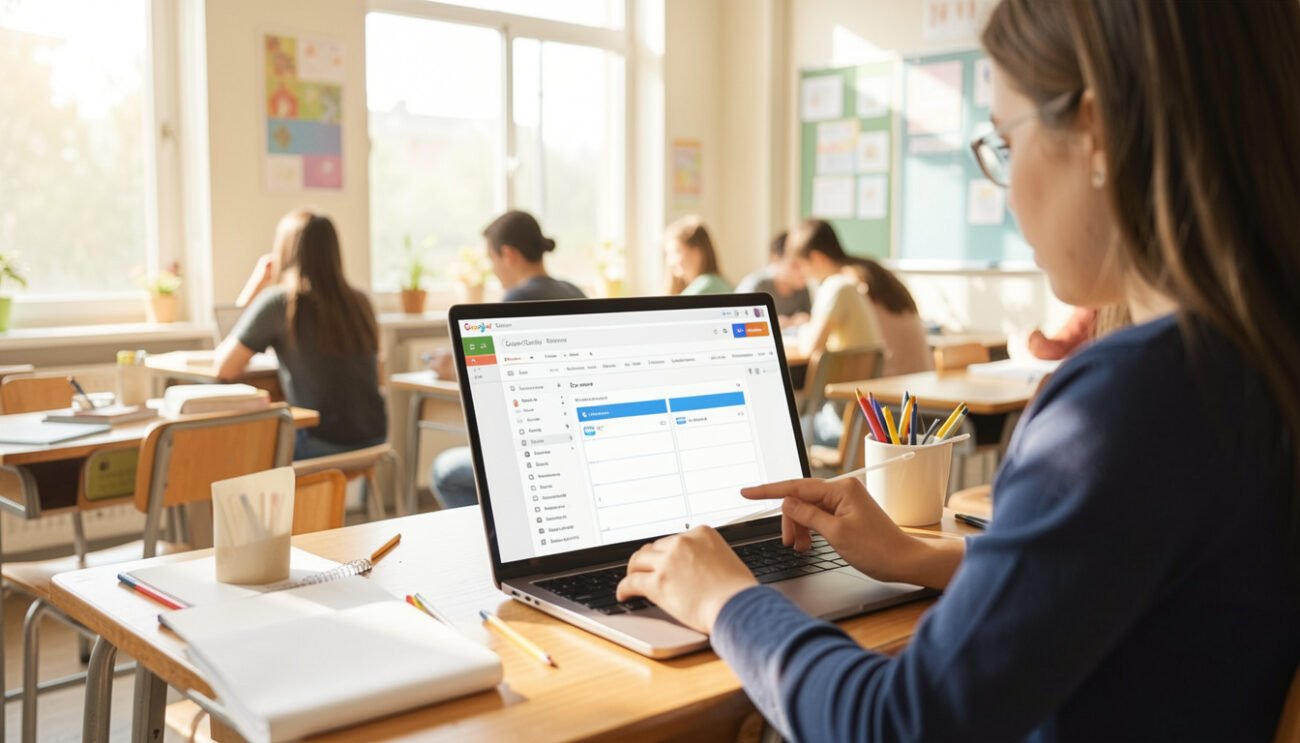
Google Classroom is a free web-based platform that helps teachers and students stay organized. Created by Google, it brings assignments, grading, and class announcements into one clean digital space. Instead of using piles of paper, teachers can share documents with a single click. Students can complete their work online from a computer, tablet, or phone. Because it connects directly with Google Docs, Google Drive, and Google Slides, setting up a class takes only a few minutes.
Many schools love using Google Classroom because it makes learning accessible from anywhere. If a student misses a day of school, they can log in at home and see exactly what happened in class. Teachers can send instant updates, share educational video links, and answer questions in real time. It cuts down on lost homework and helps everyone stay on the same page without extra stress.
Table of Contents
| Overview Feature | Classroom Details |
| Platform Name | Google Classroom |
| Developer | Google LLC |
| Initial Release | August 12, 2014 |
| Cost | Free for schools and individual users |
| Core Integration | Google Drive, Docs, Slides, Forms, and Meet |
| Main Purpose | Simplified assignment creation, distribution, and grading |
| Supported Devices | Web Browsers, iOS, Android, ChromeOS |
How to Set Up Your First Google Classroom Account
Getting started with Google Classroom is very simple for both teachers and students. First, you need to open your web browser and head over to the official website. You will log in using your school email address or a personal Google account. If your school uses Google Workspace for Education, it is best to use that specific email. This gives you full access to all special school tools and extra storage space.
Once you log in, you will see a clean dashboard with a large plus sign in the top corner. Clicking that plus sign gives you two quick options: join an existing class or create a new one. Teachers can name their class, add a section title, and pick a fun header image. Students can simply type in the class code provided by their teacher to get instant access to assignments.
Understanding the Stream Tab for Class Updates
The Stream tab is the first page you see when you open any class. Think of it like a community bulletin board where important updates appear. Teachers use the Stream tab to share daily announcements, post helpful reminders, or link fun warm-up videos. Every time a new assignment is posted, a quick notification also shows up in this feed automatically.
Students can comment on Stream posts to ask questions or discuss assignments with classmates. This creates a virtual space where everyone can communicate quickly. Teachers retain full control over the Stream and can choose whether students can post or comment. This keeps the environment safe, positive, and focused on learning without unwanted distractions.
Navigating the Classwork Tab to Find Assignments
The Classwork tab is where the real academic work happens inside the platform. It holds all assignments, quizzes, reading materials, and project guidelines. Teachers can organize this area using clear topics, such as units, weeks, or subjects. This organized setup makes it extremely easy for students to find what they need without searching through clutter.
Inside the Classwork tab, every item has a clear title and a due date attached. Clicking on an assignment expands it to show full directions, attached files, and rubric details. Students can open their personal copy of a Google Doc, type their work, and hit the submit button when finished. This keeps every assignment safe and neatly saved in Google Drive.
How Teachers Create and Grade Work Efficiently
Creating interactive lessons in Google Classroom saves educators hours of preparation time. When a teacher creates a new assignment, they can attach worksheets, links, or YouTube videos. They can set point values, assign specific due dates, and give work to the whole class or individual students. This allows teachers to help students who need customized learning materials.
Grading is equally quick and streamlined within the web interface. Teachers can click on any student submission, view the work directly on-screen, and leave helpful feedback notes. They can type private comments to encourage students or point out areas for improvement. Once graded, scores go straight into a digital gradebook that tracks overall student progress over the entire school year.
How Students Turn in Homework Without Confusion
Turning in homework online is very easy once you learn the basic steps. When a student opens an assignment, they will notice a dedicated box on the side of the screen labeled “Your Work.” They can click to create a new Google document or attach files stored on their computer. If the teacher attached a worksheet template, the student simply opens it and types their answers.
After finishing the project, the student must click the clear button labeled “Turn In.” If no file needs to be attached, they can select “Mark as Done” instead. This updates the status from assigned to submitted, letting the teacher know the work is ready for review. If a student makes a mistake, they can unsubmit the work, edit it, and turn it back in before the deadline.
Using Google Classroom on Mobile Phones and Tablets
You do not need a desktop computer to use Google Classroom effectively every day. Google offers free apps for both Android and Apple devices, making learning mobile. The app sends push notifications directly to your phone whenever a teacher posts a new grade or assignment. This helps students stay updated on important class deadlines even when they are away from home.
The mobile version allows students to take photos of paper worksheets and upload them directly to their assignments. This is helpful for math homework or art projects that are drawn by hand. Teachers can also grade assignments and leave voice notes or quick comments while using a tablet, making grading flexible and convenient.
How Parents Can Stay Informed with Guardian Summaries
Parents and guardians play a big role in student success, and Google Classroom keeps them connected. Teachers can invite guardians by entering their email addresses into the People tab. Once accepted, parents receive regular email updates about their child’s school activity. They can choose to receive these helpful summaries on a daily or weekly schedule.
Guardian summaries include details about missing work, upcoming deadlines, and class announcements. Parents do not log directly into the student account, which protects student privacy while providing transparency. This system makes parent-teacher communication seamless and ensures students receive extra support at home when deadlines are approaching.
Top Benefits of Using Google Classroom in Modern Schools
Using Google Classroom transforms traditional classrooms into efficient digital hubs. First, it eliminates the need for paper worksheets, which saves money and helps the environment. Second, it keeps student work organized in organized cloud folders so papers never get lost in backpacks. Everything is saved automatically as you type, protecting hours of hard work from unexpected computer crashes.
Another huge benefit is how easily it supports different learning styles. Teachers can share reading materials at various difficulty levels without drawing unwanted attention to individual students. It also encourages quiet students to participate by typing comments and asking questions digitally. Overall, it prepares young learners for modern technological skills they will use in high school, college, and future careers.
Easy Troubleshooting Tips for Common Issues
Sometimes users run into minor technical glitches while using digital platforms like Google Classroom. One common issue occurs when a student cannot access a class folder or assignment link. This usually happens because they are logged into a personal Gmail account instead of their official school account. Switching profiles in the top right corner of the browser usually fixes the problem instantly.
Another common issue is an assignment failing to upload properly. If your screen freezes, try refreshing the webpage or clearing your browser cache. If you lose your class code, ask your teacher to resend the invite link directly to your email. Keeping your web browser updated to the latest version prevents most viewing errors and keeps everything running smoothly.
Frequently Asked Questions
Is Google Classroom completely free to use?
Yes, it is completely free for schools, teachers, and individual users with a standard Google account.
Can students access Google Classroom without internet access?
Students need an internet connection to load assignments and turn in work. However, using the mobile app on Android or iOS allows offline editing for select Google Docs files.
How do I find my class code to join?
Your teacher will give you a six or seven-letter code. You enter this code after clicking the plus sign on the homepage.
Can parents log into a student’s Google Classroom account?
Parents should not log into the student account directly. Instead, they can ask the teacher for Guardian Summaries to receive email updates.
What happens if I turn in an assignment late?
The system marks late work clearly with a red “Done Late” label. Your teacher will see exact submission times and decide how to grade it.
Can I use Google Classroom for group projects?
Yes, teachers can assign a single Google Doc or Slide deck to multiple students so they can work together in real time.
Modern Learning Made Simple
Google Classroom has transformed how teachers share lessons and how students complete daily work. By removing paper waste and keeping assignments organized in the cloud, it makes education smoother for everyone involved. Whether you are managing a busy high school class or learning from home on a tablet, mastering this tool opens the door to stress-free digital learning.
Take a few minutes today to explore the Stream, organize your Classwork tab, and test out mobile notifications. With a few simple clicks, you will be fully prepared to handle any assignment with confidence!
